Console guide
The soc-ai console is a self-hosted triage console for Security Onion alerts. It
runs on the soc-ai host at https://<host>:8443/app behind session
authentication. This guide is a reference for the analyst screens and the
operator screens.
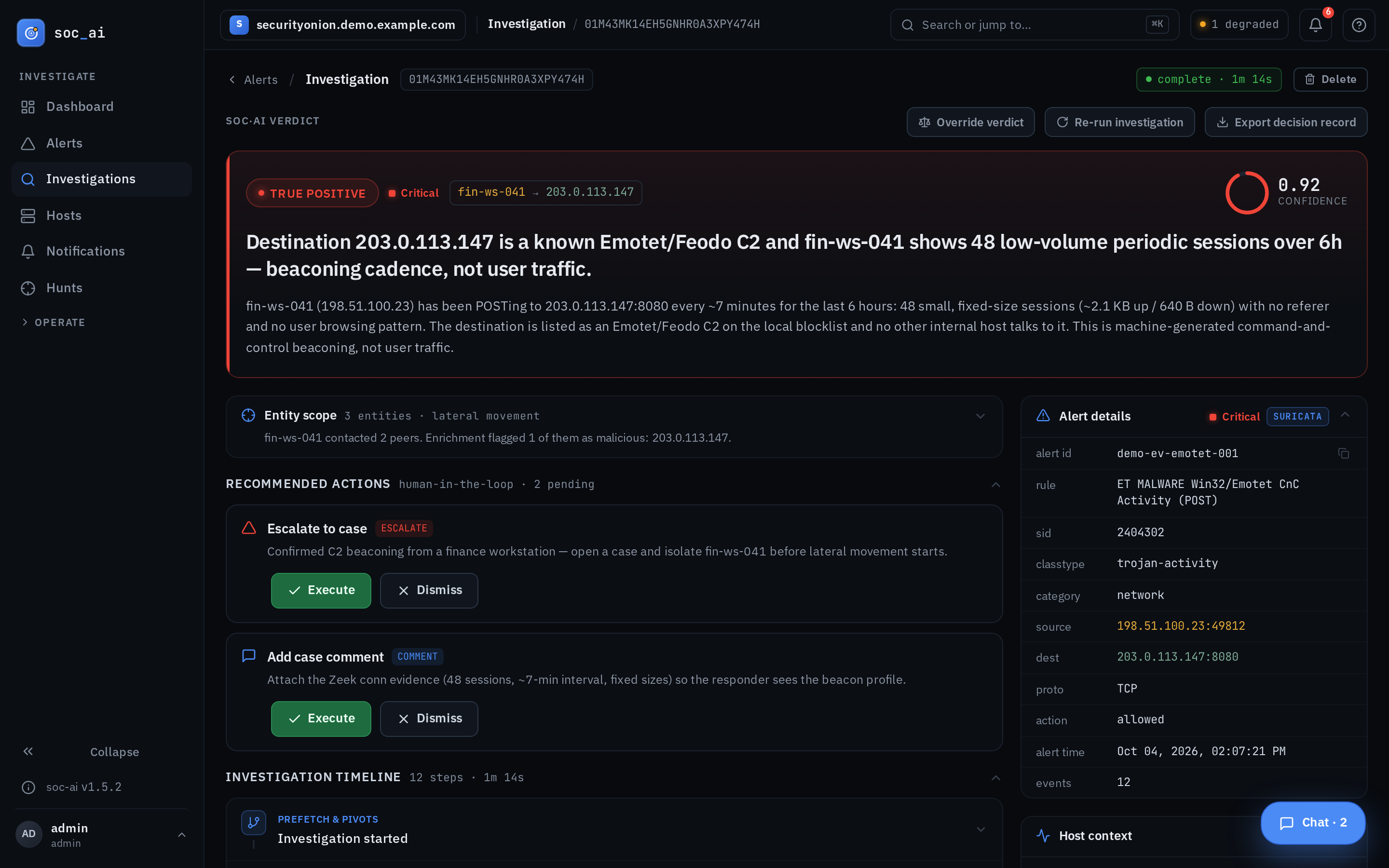
The console is the React app at
/app. It is the only web surface. Bare/redirects to it. After sign-in, the console opens the Dashboard. soc-ai no longer serves the old server-rendered/uiconsole.First run with a self-signed certificate: the console serves HTTPS with a self-signed certificate. Visit the base URL once and accept the certificate warning before you sign in. If you do not, the browser refuses the connection with an opaque
TypeError: Failed to fetch.
The flow
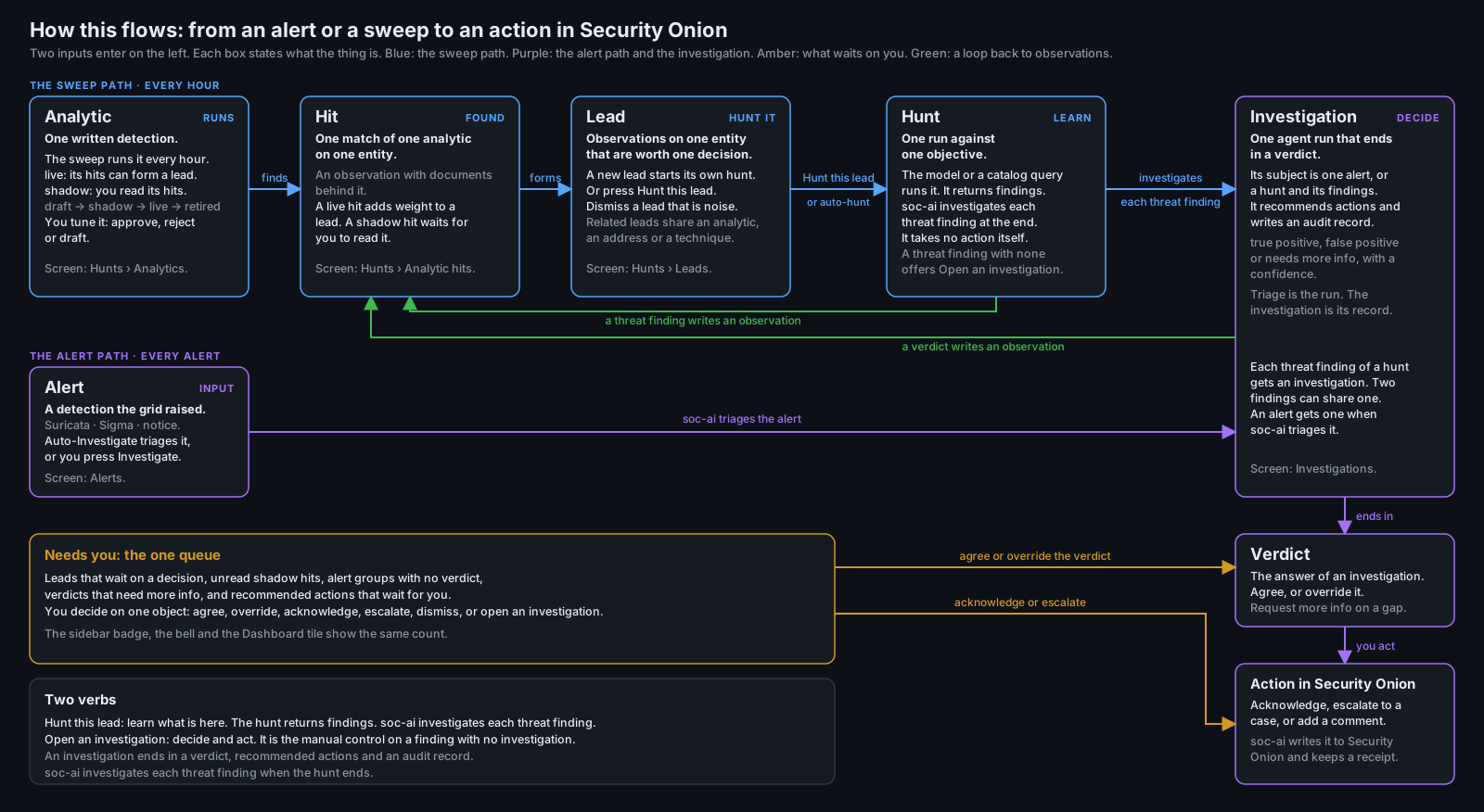
Work comes in on two paths. Each path ends in a verdict and an action in Security Onion.
- The alert path: Security Onion raises an alert. soc-ai triages the alert to a verdict. Auto-Investigate starts the triage, or you press Investigate on the Alerts screen. The chain is Alert, Investigation, Verdict, Action in Security Onion.
- The sweep path: a sweep runs every hour. An analytic hit writes an observation. Observations on one entity form a lead. A new lead starts its own hunt. The hunt investigates what it finds and brings back the verdicts. The chain is Hit, Lead, Hunt, Investigations, Verdicts, Actions.
Needs you is the single queue for your decisions. It holds the leads that wait on a decision, the unread shadow hits, the alert groups with no verdict, the verdicts that need more info and the recommended actions that wait for you. You decide on one object at a time: agree, override, acknowledge, escalate, dismiss or open an investigation. Your actions go to Security Onion. You tune an analytic with approve, reject and draft.
Two controls start the next step:
- Hunt this lead: a hunt is one run against one objective. It returns findings and a narrative. The hunt itself writes no verdict and takes no action. soc-ai investigates each finding and brings back the verdicts. A hunt is complete only after soc-ai investigates its findings.
- Open an investigation: an investigation ends in a verdict, recommended actions and an audit record. Its actions go to Security Onion. The hunt page offers this control on a finding with no investigation.
The alert drawer, the investigation page, the lead page and the hunt page each show a flow strip under the header. The strip names each step and its state: done, current, next or not yet. A done step links to its object. The next step names the control that moves the flow. The Dashboard and the Hunts page link to the chart, How this flows.
Sign in
/app/login takes a username and a password. There are two roles:
- analyst: the full triage console, with alerts, hunts and investigations.
- admin: everything an analyst can do, and the Settings page at
/app/config.
soc-ai creates the first admin, admin, at the first start. It writes the
generated password once to a locked-down sidecar file,
<soc_ai_data_dir>/bootstrap-admin-password.txt, with mode 0600. It does not
write the password to the service log. The people who can read that log often
must not know the password. Read the file for your deploy path:
# Docker deploy (default data dir /var/lib/soc-ai/data)
docker exec soc-ai cat /var/lib/soc-ai/data/bootstrap-admin-password.txt
# systemd / host-venv deploy
cat "$SOC_AI_DATA_DIR/bootstrap-admin-password.txt"
soc-ai logs the plaintext password only if the data directory was not writable
at startup. Read it then with journalctl -u soc-ai | grep -i password or with
docker compose logs soc-ai | grep -i password. On the normal path the log holds
a pointer line and no password.
Change the password after the first login. Select your name or your initials at the bottom of the sidebar to open the account menu. Select Change password. Enter the current password, the new password and the new password again. Then select Change password in the dialog. The console keeps your session and ends your other sessions. soc-ai refuses a new password that is the same as the current one.
When the admin password changes, soc-ai deletes the sidecar file. If the log says
that soc-ai could not delete it, delete the file by hand. The volume must not keep
the password.
Until you change it, three places warn that the generated password is in use.
A banner under the top bar shows on every page: "This account still uses the
generated password. Change it now." Its Change password button opens the
dialog, and the banner hides after the change. Remind me later hides the
banner until the browser session ends. Settings > Users shows a banner with a
Change password button. The doctor row admin password is WARN. The
generated password can also come from BOOTSTRAP_ADMIN_PASSWORD in .env,
which setup.sh writes. The warning covers that value too.
After 5 failed sign-ins for one username from one address, soc-ai locks that username for 5 minutes. The form warns when 2 tries or fewer remain. After 20 failed sign-ins from one address, soc-ai locks that address for 15 minutes.
The sign-in page names the transport of the page: HTTPS, or HTTP with "The connection is not encrypted." With authentication off, the page says "Sign-in is off" and offers Open the console. Every visitor has admin access then. Sign in with an account to create an API token or to manage users.
Recovery of a locked-out admin
If no admin can sign in, set a new password from the host. The command needs access to the store, so run it where soc-ai runs:
# Docker deploy
docker compose exec soc-ai soc-ai users reset-password admin
# systemd / host-venv deploy
uv run soc-ai users reset-password admin
The command prints a new random password once. It ends every session of the
account. It revokes every API token that the account created. It also deletes
the bootstrap sidecar file of admin. Sign in with the new password. Then
change it in the account menu. soc-ai users list prints each account with
its role and state.
Navigation
The sidebar has two groups. Analyst holds Dashboard, Alerts, Investigations, Hosts and Hunts. It stays open, because an analyst spends most of a shift on those screens. Operator holds Status, Runbooks, Backtest and Settings. It starts collapsed, because you reach those screens once a shift or once a week.
Click the Operator heading to expand the group, or go straight to one of its screens. Operator expands itself when the current page is in that group. Thus a closed group never hides the current page.
The bell in the top bar holds the notifications. Its "View all notifications"
link opens the Notifications page at /app/notifications. The sidebar has no
entry for that page.
The bell badge states the Needs-you count. The "Needs you" block lists each part of that count, with its scope and a link to its list. The block is at the top of the bell panel and of the Notifications page. The parts add up to the badge. The events follow the block. "Show more" loads 20 more events.
"Dismiss all" hides every event up to the moment the list loaded. It also marks every unread shadow hit up to that moment as read, and the audit trail records it. Leads, alert groups with no verdict, verdicts that need more info and recommended actions are decisions. Dismiss all does not touch them.
The Alerts, Investigations and Hunts entries carry a badge for the work that waits on you there. The badges are parts of the Needs-you count. The Needs-you tile on the Dashboard and the bell state the same total.
The help button "?" in the top bar opens the help menu. The menu starts a tour, opens the keyboard shortcuts and opens this guide in a new tab. See Tours. The command palette also holds the keyboard shortcuts. Press ⌘K and type "shortcuts".
The Ask soc-ai button at the right end of the top bar opens the chat. See Ask soc-ai.
The top bar shows the workspace switcher only when more than one workspace exists. On a lead page, the breadcrumb reads "Hunts / Lead 18", and the Hunts entry stays highlighted.
Tours
A tour points at the main controls of a page, one step at a time. A step dims the page and draws an outline around one control. A card beside the control explains it.
How a tour starts
- The welcome tour starts after the first sign-in. With authentication off, it starts on the first visit. It shows the sidebar, the page time filter, the search, the bell, the Ask soc-ai button and the help menu.
- Each page has its own tour. The tour of a page starts on the first visit to that page. When the welcome tour also applies, the page tour starts after it. Two tours never run at the same time.
- A tour that you close or skip does not start again. The next page tour waits until you open another page.
- A tour starts again on a first visit only when its content changes in a way that a returning operator needs to see.
A step whose control is not on the page is skipped. A control can be absent because the page has no data, the grid is degraded or your role cannot see it. When no step of a tour can show, the tour does not start.
Keys
Right arrow and Left arrow move between the steps. Escape closes the tour. Tab stays inside the card. The page under a step takes no click and no page key.
The help menu
The "?" button in the top bar opens the help menu:
| Item | What it does |
|---|---|
| Tour this page | Starts the tour of the current page. |
| Tour soc-ai from the start | Starts the welcome tour again. The page tours keep their state. Use Tour this page for the tour of a page. |
| Keyboard shortcuts | Opens the keyboard shortcut sheet. |
| Open the guide | Opens this guide in a new tab. |
| Turn on tours | Shows when the tours are off. It turns them on again. |
Turn off tours
Press "Turn off tours" on the last step of a tour, or press Skip and then "Turn off tours". No tour then starts by itself. The help menu still starts a tour on demand.
Where the tour state lives
soc-ai keeps the tour state of a signed-in user on the user account, so the first sign-in
holds across browsers. The state is the opt-out and the version of each tour seen.
GET /api/v1/me/tours reads it and PUT /api/v1/me/tours replaces it. A bearer token
reads and writes the state of the user who created it.
With authentication off, and in the demo, the browser keeps the same state in
localStorage under soc-ai.tours. Another browser then shows the tours again.
Automated browsers
A tour never starts by itself in an automated browser, so a script sees the page with no card over it. The rule holds in each of these cases:
navigator.webdriveris true. Playwright and Selenium set it. The browser tests intests/browserand the dogfood scripts are not affected.- The URL has
?tour=off. The browser tab keeps the switch for the rest of its session. - localStorage
soc-ai.tours.offis1.
The help menu still starts a tour in each case. Thus an automated check can open a tour
on purpose. A vitest test calls allowTourAutoStartInTests() from
frontend/src/tours/testing.ts to see a tour start by itself.
Ask soc-ai
Ask soc-ai is the chat of the console. It answers in one turn with the read tools of an investigation. A turn takes as long as one investigation turn.
Open and close
- The Ask soc-ai button is at the right end of the top bar on every page.
- The label names the object of the page: "Ask soc-ai about this investigation", "about this host", "about this lead" or "about this hunt". A page with no object reads "Ask soc-ai".
- Press
cto open the panel from any page. The key does nothing while you type in a field. The shortcut sheet lists it. - The panel slides in from the right, over the page. It has the same width and the same header on every page.
- The focus moves into the question box when the panel opens.
- Press Esc or the close button to close the panel. The focus goes back to the control that opened it.
- The page under the panel stays live. You can scroll it and use its controls.
- The report drawer on the Alerts page covers the top bar. The top row of the report holds the same button. Esc closes the panel first and the drawer second.
Scopes
The scope is the subject of a thread. The line under the panel header names the scope and the object.
| Scope | Page | Thread |
|---|---|---|
| This investigation | An investigation page, or the report drawer on Alerts | One thread for each investigation. All analysts share it. |
| This host | A host page | One thread for each host. All analysts share it. |
| This lead | A lead page | One thread for each lead. All analysts share it. |
| This hunt | A hunt page, after the hunt ends | One thread for each hunt. All analysts share it. |
| General | Every page | One thread for each analyst. Two analysts do not see each other's questions. |
- Switch to general on the scope line opens your general thread.
- Back to this host returns to the thread of the page. The words name the object of the page.
- The panel scope follows the page. When you open another host, the panel shows the thread of that host.
- soc-ai stores each thread on the server. A reload, a restart and a second tab show the same thread.
- The browser tab keeps an unsent question for each scope. The question stays in the box when you close the panel, switch the scope or reload the page.
- Clear conversation discards the thread of the general scope, a host or a lead. A thread about an investigation or a hunt stays.
Starter questions
An empty thread shows three starter questions. A click on a starter sends it. While a turn runs, the click puts the question in the box.
The Dashboard holds an Ask soc-ai card with the three general starters. A
click on a starter opens the panel on the general scope and sends the question.
Open opens the panel with no question. The card keeps the assistant slot
of a saved Dashboard layout.
Proposals
- A verdict: on an investigation, the chat can propose a verdict. The answer then shows Apply verdict. The control appears only if evidence backs the proposal. A proposal of the current verdict reads "This is the current verdict."
- An escalation: a proposed true positive also shows Escalate to case. The control opens the escalate confirm on the page. It writes nothing itself.
- A hunt: on the general scope, a host or a lead, a question can need a search across many hosts or a long window. The answer then shows a Start hunt card. The card holds an objective that the agent wrote. It also states the question that the hunt answers. Press Start hunt to run that objective and open the running hunt.
- The hunt scope: it answers from the report of the hunt. It proposes nothing, and it cannot change the result.
Limits
The chat has read tools only. It runs no write action. It never acknowledges or escalates an alert. Apply verdict, Escalate to case and Start hunt are controls that you press.
General chat switch
Open Settings → Models & Reasoning → Agent → General chat. The setting turns the general scope off. It takes effect with no restart. The console reads it when a page loads.
With the switch off, a page with no object shows no Ask soc-ai button. The Dashboard hides its card, and the panel offers no switch to general. The scopes of an investigation, a host, a lead and a hunt stay on.
Turn it off if the triage backlog already saturates a shared analyst model.
The general scope is open on every page. It is the easiest place in the
console to spend inference capacity by accident. Nothing runs while nobody
types. The stored threads survive the change.
Dashboard
The Dashboard is at /app/dashboard. Its title reads "Dashboard". The console opens it after sign-in. The
Dashboard shows the current activity of the grid and what soc-ai concluded about it. The Ask soc-ai card opens the
chat on either one.
Needs you
The first tile states the work that waits on you. It has one line for each part, and each line opens the list that holds that work:
- the leads that wait on a decision,
- the unread shadow hits,
- the alert groups with no verdict in the last 7 days,
- the verdicts that need more info in the last 30 days,
- the recommended actions that wait for you on the true positives of the last 30 days.
The sidebar badges and the bell state the same total. A part that soc-ai cannot read shows its own line with the reason, and the total then reads "11+". The tile says "Nothing needs you" only when it read every part and each part is zero.
The recommended actions line opens the Investigations list with the filter Action waits for you. Each row shows its waiting actions: the alert or the case, and the reason of the model. Each action has two buttons on the row. The first button names the write, as on the action card: Escalate to case, Acknowledge or Add comment. The second button is Dismiss. You do not need to open the investigation. The write button asks first and states what soc-ai writes to Security Onion. Dismiss asks first, and a toast offers Undo. The row then leaves the list, and the counts change.
To dismiss the actions of many rows, select the rows with their checkboxes. Then press Dismiss actions in the selection bar. One confirm covers the press. The result line names each row and offers Undo for the whole press. A row that failed stays selected.
An action counts only when soc-ai can execute it. One rule decides for the action card, the list row, the count and the write to Security Onion. The count, the badges, the bell and the list leave out an action in these cases:
- The run is a backtest replay, or a newer run replaced it.
- The run is a promoted finding or a promoted lead.
- A promoted finding or lead uses the document of the run as its anchor, and the document is not a Security Onion alert.
- A promoted finding or lead uses the document of the run as its anchor, and the grid did not say whether the document is an alert.
- An analyst verdict on the alert disagrees with the verdict of the run.
- The action is an ack, and an analyst set the alert to a verdict other than false positive.
- The action is a comment, and the run opened no case.
The action card of the investigation keeps such an action. The card turns the write off and states the reason. Dismiss stays on. Override the verdict of the run, and the actions follow the new verdict.
An anchor is often a Zeek or host-log record with no alert behind it. soc-ai asks the grid whether the alert feed holds the anchor document. The question uses the alert filter of the Alerts page and has no time window. A Security Onion alert that a promotion uses as its anchor keeps its actions. For a document outside the feed, the card reads "A promoted lead uses this document as its anchor. The document is not a Security Onion alert." When the grid does not answer, the card reads "soc-ai could not read the anchor document. Try again when the grid answers." The run of a promoted finding or lead writes nothing to Security Onion in every case.
An escalate card names each Security Onion case that the alert is already on, with a link to the case. A press then opens no second case. soc-ai records the action as done.
Under the tile one sentence states the flow: "soc-ai investigates alerts and runs hunts. You make each decision in Needs you. soc-ai sends your actions to Security Onion." The How this flows link after it opens the chart on the Hunts page.
The true positives tile counts the investigations with a true positive verdict in the Dashboard window. The Investigations list counts the same runs with the same query. "Open them" opens that list.
When the grid answers the health probe late, an amber banner reads "The grid is slow. Counts can be late." Each tile that reads the grid then says "May be incomplete." A red banner means that the probe got no answer.
Setup health
In the shipped layout, a persistent card is at the top of the side column on the Dashboard. Persistent means that the card never hides itself. The panels below it hide when they have nothing to review.
A clean card is one compact line, "All checks passing," with the time since that check. On a degraded card an admin sees each failing or warned check by name, with its detail and a hint if one exists. The card also carries a Re-check button. Re-check forces a fresh check past the 10 minute cache. Use it after you fix a problem. A re-check that fails reads "The re-check failed. Try again." It leaves the last known-good rows on screen. An analyst sees a count and a pointer to Settings → Diagnostics. An analyst never sees the row names.
The card reads the same checks as the doctor, without the model fitness probe. That probe can take a few minutes, and a dashboard poll cannot wait that long. Fitness stays on the model battery in Settings.
Outcome and severity tiles
The address of the page holds the window that you picked. Back and a shared link open the same window.
The verdict tiles count alert groups over the range that you picked. Each group counts under the worst verdict among its runs inside that range. A group with no run in the range counts under its older verdict. That verdict is inherited, and the panel states how many groups carry one.
Each tile opens /app/alerts with the same verdict filter. That link carries
your range and un-hides acknowledged groups, so the destination holds what the
tile counted.
The severity bars open the same list, filtered to that severity.
Verdict quality
This card holds the trend from the nightly micro-eval. See DOCKER.md for how to schedule it. The badge names the instrument that measured each point. An oracle-graded point carries an agreement rate. A locally measured point carries fallback and error rates. soc-ai never blends the two on one line.
Under the run count, one line dates the newest point and the last attempt. If a run wrote nothing, the line carries the reason from that run. The usual reason is a grid with no eligible alerts. With the in-app nightly on, a point older than 2 scheduled runs gets an amber "no point in Nd" marker. Thus the card cannot show last month's point as last night's point. The server process keeps the time of the last attempt in memory. A restart clears it.
Under the headline rate, the card shows the grade composition, "3 agree · 2 partial". A partial critique reads "right verdict, thin reasoning". It lowers the rate as much as a full disagreement. A rate of 60% alone does not show which of the two caused the misses. A partial critique tells you to improve a prompt. A disagreement tells you to look for a regression.
If a point raises an alarm, the card prints the path to the eval bundle of that run. That
directory holds the oracle critiques. The critiques are the only evidence for or
against the alarm. The card prints a file path on the soc-ai host. Read the
file with docker exec soc-ai cat <path>/report.md.
Dashboard layout
The Dashboard places its panels in a layout of 12 columns. You can move and resize each panel. The shipped layout puts each panel in the place and the width it had before the column layout.
To change the layout:
- Click Edit layout. Each panel shows a dashed outline, a handle on its top edge and a corner mark at its bottom right.
- Drag a panel by its handle. The other panels move to make room.
- Drag the bottom right corner to change the width or the height of a panel.
- Click Done to stop. The console saves each change at once.
Outside edit mode, a drag does nothing. Edit mode is available in a window of 1024 pixels or wider. A narrower window stacks the panels in reading order and says "Widen the window to move or resize panels."
A panel is never shorter than its content. A layout therefore cannot clip a failing check or a warning. You can make a panel taller than its content.
To use the keyboard, move the focus to a handle. The arrow keys move the panel. Shift and an arrow key change its width or its height. A screen reader announces each step.
Reset layout puts every panel back in its shipped place and size.
soc-ai keeps one layout for each user account. You see the same layout on
another workstation. The routes are GET, PUT and DELETE on
/api/v1/me/dashboard-layout. With authentication off, no user account owns a
layout. The browser then keeps the layout in local storage under the key
soc-ai.dashboard.layout. Another browser shows the shipped layout. The help
line in edit mode states where the console keeps your layout.
A release can remove a panel. A saved layout then loses the slot of that panel. A panel that a release adds appears at the bottom of its column.
Triage console
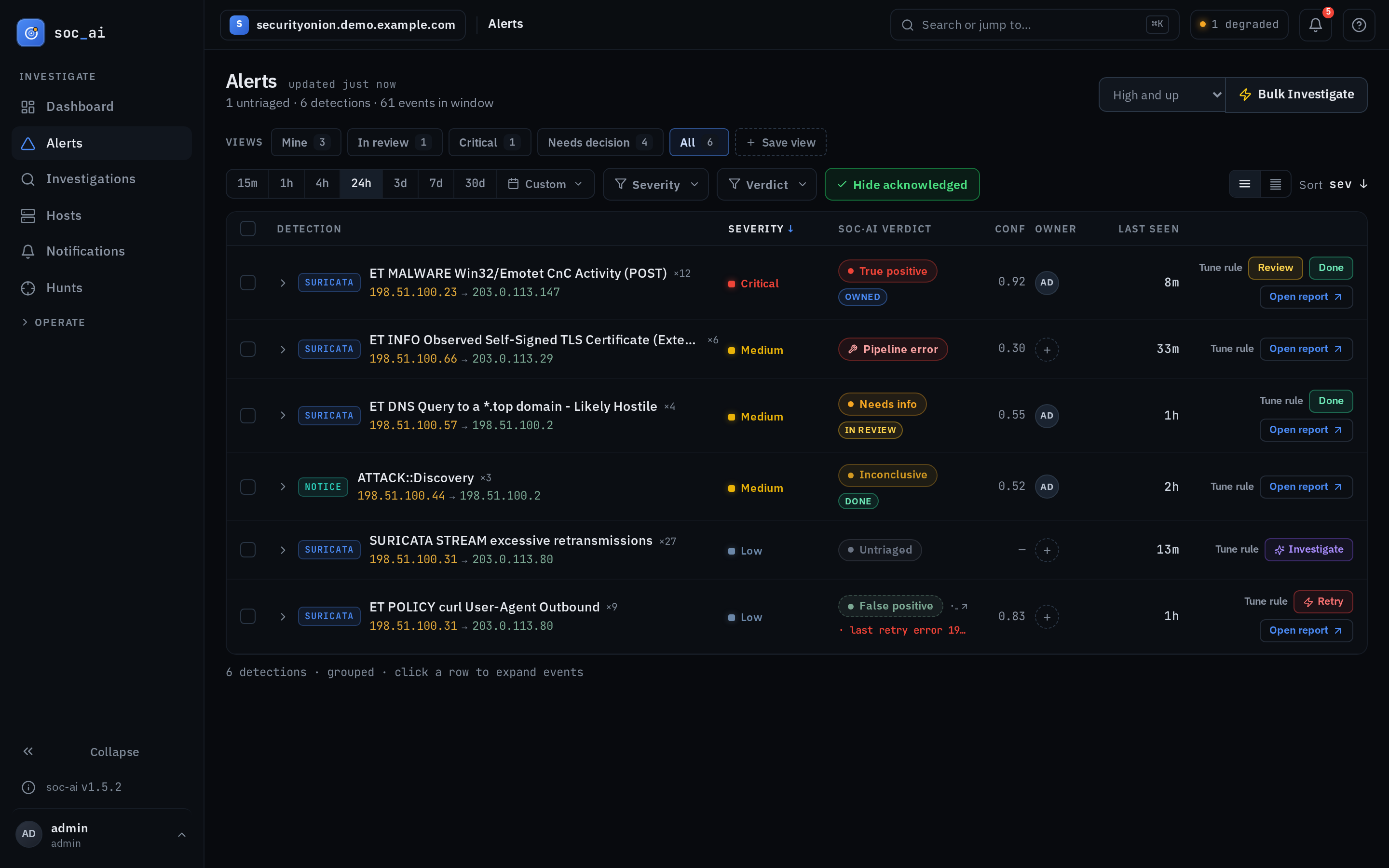
The triage console is at /app/alerts. The main pane holds alert groups in the
Security Onion style. soc-ai groups them
by rule and shows the newest first.
- Filter and sort: the controls are the time range, the severity, the sort order, and a free-text OQL box.
- Expand a group: click a group row to load its recent events.
- Investigate: start an investigation for an alert or a group. An investigation runs as a background task. It continues when you close the drawer. It runs beside other investigations, and soc-ai records every run. The drawer shows live progress: the phase, the elapsed time, the tools called and the enrichments.
- Verdict badges: each group and each alert shows an investigation verdict: true_positive, false_positive, needs_more_info, running or error. A group shows the worst verdict among its runs inside the time range, with the count of each verdict. A group with no run in the range shows its older verdict as a dashed "inherited" badge with the age of that verdict. An alert shows the verdict of its latest run. A dashed alert badge means the verdict came from a similar alert. A similar alert has the same rule and the same src/dst pair, inside the inherit window.
- Permalinks: every investigation has a URL that you can share,
/app/investigation/{id}. soc-ai creates the URL while the investigation still runs. - ⚡ Bulk Investigate: investigate every alert in the current view
that nothing covers yet. Use the severity checkboxes to choose the severities it acts on.
The default is critical and high.
auto_triage_max_targetscaps a single run at 25 targets, so one click cannot start dozens of investigations. The next run takes the remaining uncovered alerts. The status chip shows the hunted, total and skipped counts with the chosen severities.
Investigations
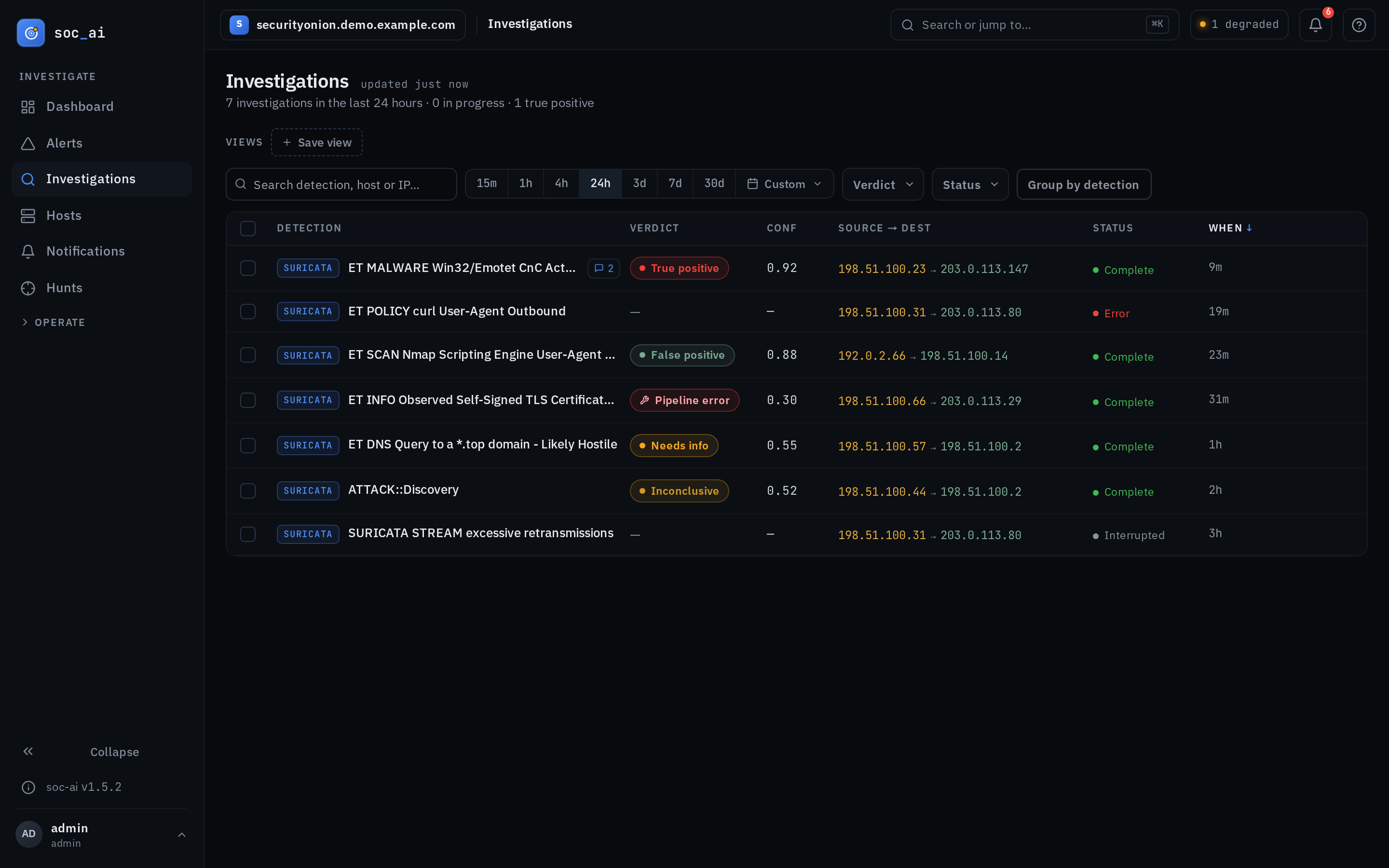
The Investigations screen is at /app/investigations. It lists every past investigation and every running one, with a
permalink on each. A row carries the verdict, the rule, the time and the person
who started it. Use the list to review history and to find an earlier verdict.
Stale-run reaping: soc-ai cleans up an investigation that a crash, a restart
or a network drop left in running. At startup it marks every orphaned running
row as error, because the worker for that row died with the previous process. A
periodic check then marks any run that stays running past
investigation_reaper_minutes the same way. That setting defaults to 30. You do not
need to clear an orphan by hand.
Analyst verdicts: a verdict that an analyst sets stays on the alert. A newer run of the alert does not remove it. The page of each run of the alert names the analyst verdict and links its run. An Alerts row names it beside the verdict badge. Re-run and Request more info start a new run, and the new run can reach another verdict. Each asks first when an analyst verdict stands on the alert. The bulk Re-investigate of this list skips such an alert and names the reason. soc-ai does not acknowledge an alert that an analyst set to true positive. A recommended action that disagrees with the analyst verdict has its write button off on the action card. The card states the reason. The action does not count as waiting.
Backtest replays: the list hides the investigations that a backtest ran. The header figures do not count them. The header line names how many replays it left out. Turn on Show backtest replays to add them to the list and to the figures. A grey Backtest replay chip marks each replay. The Dashboard counts never include a replay. The Backtest section gives the reason.
Hunts
The Hunts screen is at /app/hunts. It holds the hunting pipeline in order, top to bottom: the Needs you
strip, Analytic hits, Leads, Hunts and the New hunt drawer. A second tab,
Analytics, holds the analytic catalog and the Lead quality block.
The Needs-you strip counts the two things that wait on you: the unread shadow hits, and the leads that need a decision. Each link jumps to the block that holds them, with the filter set. The sidebar badge on the Hunts item shows the same count.
A lead settles when its hunt finishes. A hunt that found no threat closes the lead. The lead then shows under Closed as "Closed. The hunt found no threat." with the chip "closed by soc-ai". A hunt closes the lead only when it read its evidence. A lead stays under Needs decision if its hunt could not read all evidence, or if an earlier hunt found a threat. The lead page states the reason. A hunt that found a threat or a visibility gap leaves the lead under Needs decision. If its hunt could not run on two attempts, the lead stays there as "Hunted · Could not run", with Hunt again.
docs/HUNTING.md is the full guide. It covers the five nouns, the path from a hit to a lead and from a lead to a hunt, and the shadow week. It also covers the settings, the command line and the API routes.
Hosts
The Hosts screen is at /app/hosts. It holds what soc-ai concluded about each
machine on your network, and what you declared about it. It has two parts: the
list and the host page.
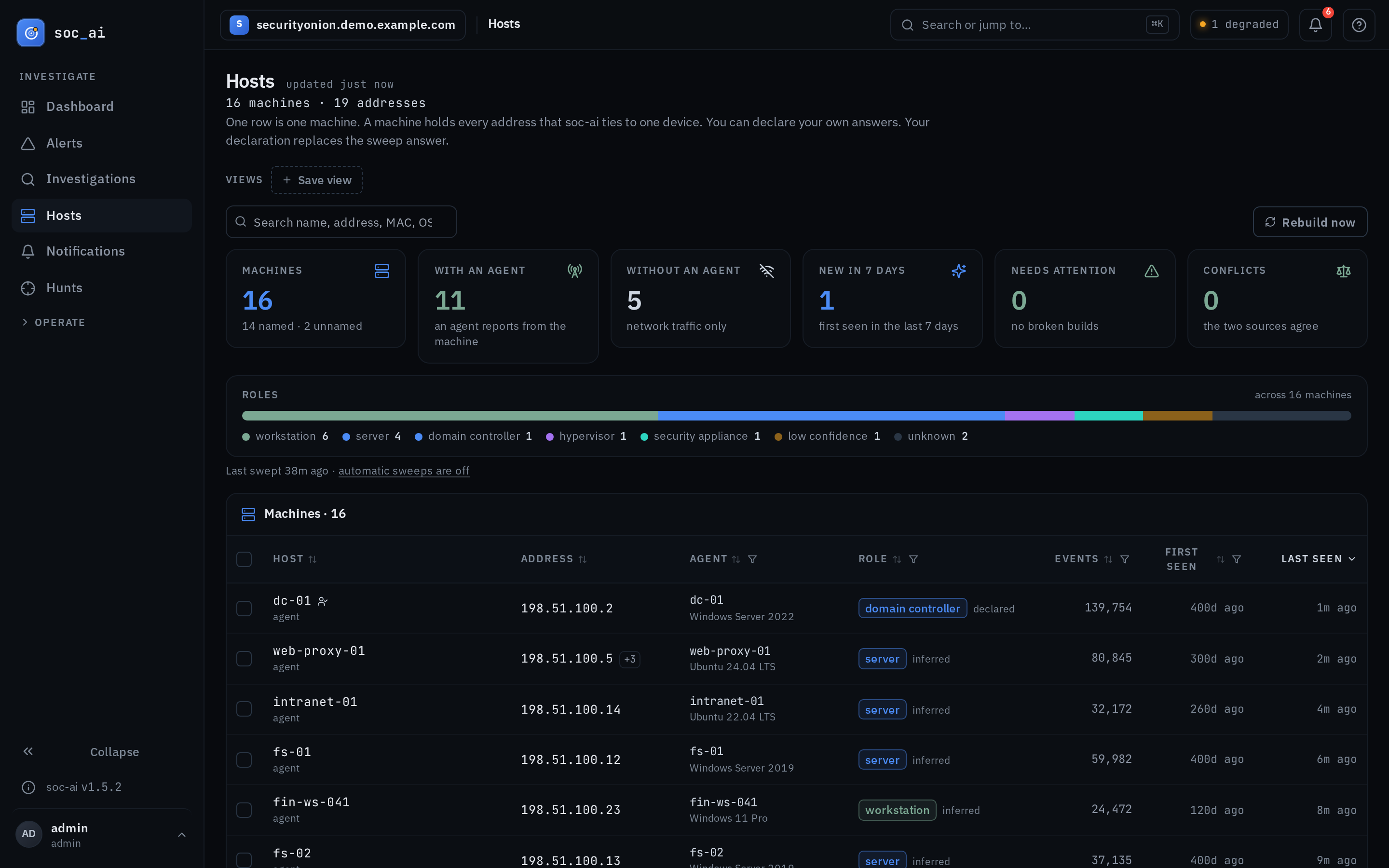
The list at /app/hosts gives one row per machine. A machine is the set of
addresses that soc-ai holds to be one device: the addresses an agent reports, the
container bridge that agent owns, a DHCP lease by MAC, or a name that only one
machine carries. A row holds the host name and its source, the primary address
with the count of the other addresses, the agent, the role, the event count, the
first-seen time and the last-seen time.
Every column header sorts both ways. The Role, Agent, Activity and First seen headers hold filters. One search box matches a name from any source, an address with an exact match first and a prefix match next, a MAC, the OS, the role and the agent name. The search reads every machine, with or without the activity filter. The URL holds the search, the sort, the filters and the page, so Back and a reload keep them. Click a row to open the machine.
Six cards for the whole network are above the table, with a role bar under them. Each card is a link to the list filter it counts: Machines, With an agent, Without an agent, New in 7 days, Needs attention and Conflicts. The filters never change the cards.
Under the cards, a line gives the age of the numbers, for example "Last swept 4h ago". A note appears while automatic sweeps are off. It gives the time of the state that the list shows. A row whose agent last reported more than a day before carries a stale mark. A count that soc-ai could not read shows a dash. It never shows a zero.
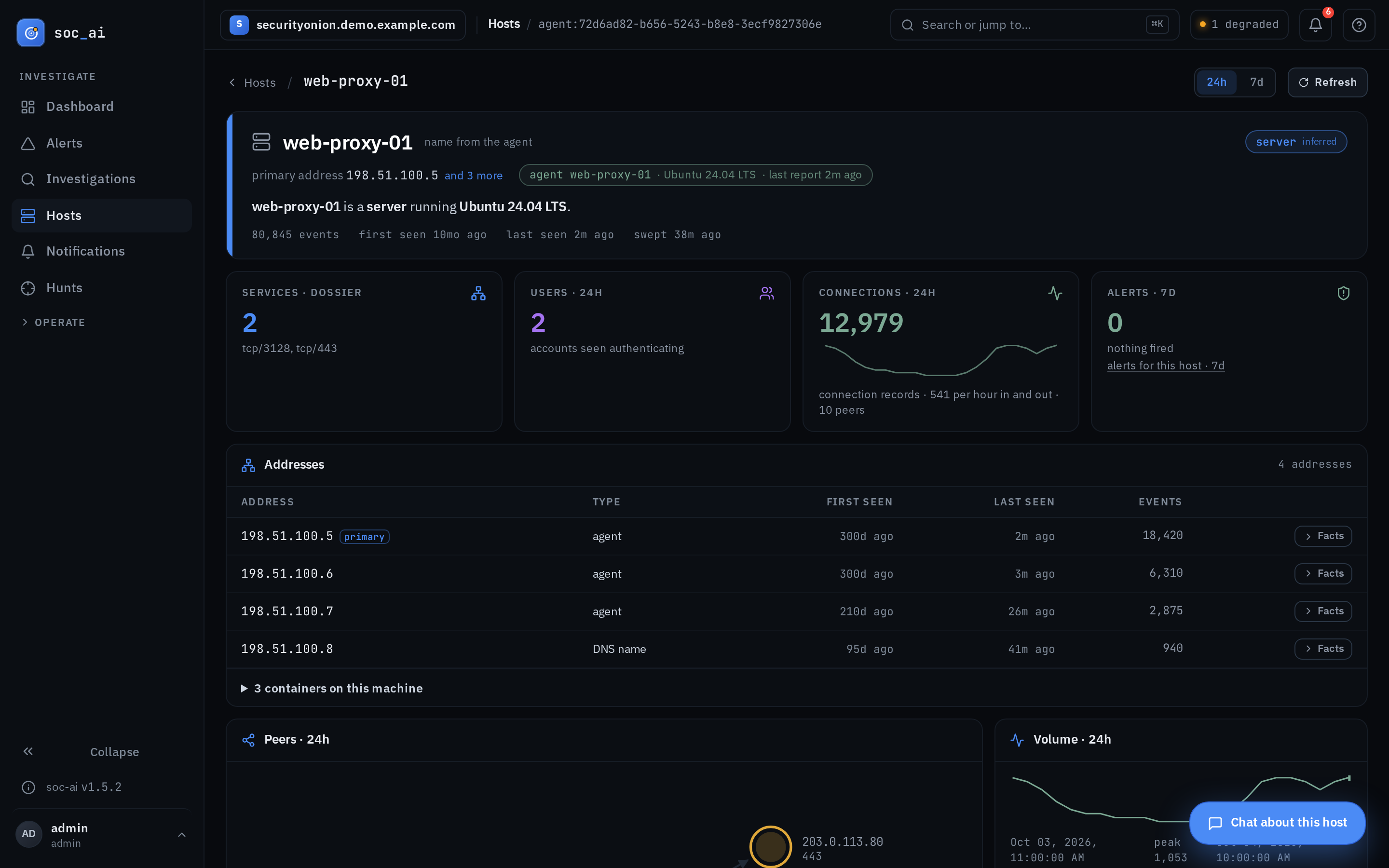
The host page at /app/hosts/<machine> holds these parts, top to bottom. An
old link by address still opens the machine page with that address in focus.
- The banner names the machine. It uses the hostname if any source knows one, and the address if none does. It also carries the role, the source of that role, the OS, the criticality, and whether the machine reports on itself. "no agent data" means that the network supplied every field below. The host itself reported nothing to soc-ai.
- Four counters cover the services the host answers on, the accounts that
authenticated, the connection volume, and the alerts over 7 days. An
all alerts · 7dlink is under the alert count. The alerts console filters by time, severity and verdict, and never by host. The link therefore opens on the detections of the whole network over those days, with this host's detections among them. - Peers, volume and users over the window that you pick, 24h or 7d.
- 12 field cards, one for each dossier field.
- The behavioural profile, one row for each dimension of the host's baseline. Each row carries a coverage chip: measured, learning, blind, behind proxy or unmeasurable. A blind row reads "cannot be measured:" and the reason. On a host with an agent, the reason names the missing plane and the planes that the host ships. An example is "this host ships no endpoint process events. It ships host logs and osquery." The console reads the planes from the grid. When the grid cannot answer, the reason names host logs only. An unmeasurable row reads "not measured:" and the reason the grid gave when it refused the query.
An internal address opens here from anywhere in the console. Alert rows, the peer
graph and old /entity/<ip> links all redirect to it. An external address still
opens the Entity screen, because the sweep builds hosts inside your
internal_cidrs only.
The two lanes
Every field holds up to 2 answers, and one answer never overwrites the other:
- inferred is what the sweep concluded. It carries a provenance rung that names the type of signal, a confidence, and the evidence under Why?.
- operator is what you declared. soc-ai stores it in its own columns, so no rebuild can overwrite it.
soc-ai stores no "current value". The page resolves each field as it reads it. It
takes the operator lane first. It then takes the inferred value if that value
clears the confidence floor dossier_min_confidence and a re-confirmation falls
inside the freshness window dossier_staleness_hours. A field that resolves to
nothing names the test that it failed. The reason is that "no signal yet" and
"observed but too weak to assert" are different answers.
Declarations
On any field card:
- Declare a value writes your value and an optional note. The card records your name and shows the value back. The button reads Edit declaration once a declaration exists. Three fields hold structured values and take JSON: services offered, activity profile and management plane.
- Hand back to the builder deletes your override. The answer from the sweep then applies again.
- If the sweep disagrees with a value that you declared, the card says so and names the type of disagreement. There are three types: the evidence points elsewhere, the evidence for your value is gone, or the address appears to have rebound to a different machine. A rebound needs a hostname or a MAC that changes to a different value. A value that appears for the first time is not a rebound. Only an address with a declaration shows a rebound. Then you have two choices:
- Accept inference drops your override and takes the answer from the sweep. Confirm it with Discard my value.
- Keep mine keeps your value and pauses the question for a period. The period doubles each time you press it, up to 90 days.
An analyst sees all of this as read-only. Only an admin can declare a value, accept one, keep one, or run a sweep.
soc-ai shows a disagreement only if it repeats. soc-ai prompts you after 3
consecutive builds disagree. dossier_conflict_min_observations sets that count.
It prompts at most once per field per 14 days.
dossier_conflict_prompt_interval_hours sets that interval. One build that
agrees resets the count.
Dossier sweep
The scheduled sweep is off by default. dossier_schedule_enabled controls it. A
sweep covers hundreds of hosts and runs several Elasticsearch queries for each
one. You decide when it runs. The Hosts screen stays empty until the sweep runs
once. An empty screen means that the sweep has not run yet. The behavioural baseline does not wait on this
schedule. The profile sweep rebuilds it when it is older than the dossier refresh
interval, and a scheduled dossier refresh rebuilds it too.
- Rebuild now on the Hosts screen runs a sweep in the background and reports what it built. Only an admin sees the button.
- Settings → Host dossier turns on the schedule and sets its interval. Every setting there applies with no restart. The next sweep reads it.
Host identity
A machine is a set of addresses that soc-ai holds to be one device. The sweep builds the machines at the end of each run. The per-address dossier stays under the machine. It holds the facts that an alert joins on.
The sweep applies five rules in this order. A rule never moves an address that a stronger rule placed.
- Agent: one agent is one machine. Its addresses are the internal values
of
host.ipthat it reports. Link-local addresses do not count. An address that two agents report belongs to neither agent. Docker's172.17.0.1is an example. - Bridge and container: an agent that reports a bridge gateway owns the /24
of that gateway. A gateway is an IPv4 address that ends in
.1. An address in that /24 that the endpoint sensor of the agent sees is a container on the machine. Other datasets can also see the address. The address stays a machine when another agent claims it or a DHCP lease names it. A container is not a row in the list. The machine page lists it. - DHCP lease: an address that a lease gave to one MAC belongs to the machine of that MAC. An agent owns a MAC when it reports the MAC and reports 8 MACs or fewer. A container host reports one MAC for each container, and a host with hundreds of MACs owns none. A MAC that no agent owns is a machine of its own. If two MACs held one address in the window, the newer lease wins.
- Unique name: a network-only address joins an agent machine when its strong DNS name has the short name of that machine. A short name that two machines share joins neither machine.
- Single address: an address that no rule placed is a machine of its own.
| Item | Rule |
|---|---|
| Machine key | agent:<agent id>, else mac:<mac>, else ip:<address>. The key stays the same across sweeps. |
| Merge | An agent that appears on a machine soc-ai knew by MAC or by address takes that machine. The machine page lists the older key. |
| Primary address | The agent address with the most events, else the newest lease, else the only address. |
| Name | A declaration, else the agent host.name, else the newest lease hostname, else the strong DNS name of the primary address. The machine keeps every name with its source. |
| Events | The sum over the addresses of the machine. An address that only its agent reports counts the agent's own documents for that address. |
| Last seen | The newest event on any address of the machine. |
An agent's own name and a DHCP lease hostname are the names that the machine gives itself. The sweep keeps them when they are a public top-level domain, such as "nexus". The sweep still drops a bare DNS name that is a top-level domain.
The sweep reads DHCP leases in two shapes. Security Onion 3.x writes
client.address, dhcp.assigned_ip, host.hostname and host.mac. Older
grids write source.ip, dhcp.hostname and dhcp.client.mac.
An address that no census has found for dossier_stale_address_days leaves the
dossier table. The default is 30 days. An address with an operator declaration
stays. The machine keeps the address in its history. A sweep whose census
failed removes nothing.
If the census, the agent pass or the DHCP lease pass fails, the sweep keeps the machines that it has. The run records the error. A machine therefore never changes its key because one pass could not read the grid.
The observations, the profile and the entity page of a host read every address and every name of its machine. A first label of a name joins only when no other machine has that label. A value that names no machine reads itself only.
The machine endpoints:
| Route | Answer |
|---|---|
GET /api/v1/hosts |
One row per machine, searched, filtered, sorted and paged. |
GET /api/v1/hosts/summary?activity= |
The cards and the counts in the column menus. Each count equals the list total of one filter with the same activity. The default is all, and the cards use it. The column menus send the activity of the list. |
GET /api/v1/hosts/resolve?value= |
The machine key of an address, a name, a MAC or an agent id. 404 when no machine holds it. |
GET /api/v1/hosts/{key} |
One machine: each address with its type, the containers, the MACs, the merged keys and the dossier of the primary address. |
The list takes these parameters. An unknown value is a 422 that names the legal values.
| Parameter | Values |
|---|---|
q |
Search. It matches each name from any source, each address, each MAC, the OS, the role and the agent name. Case does not matter. An address matches exactly or by prefix. A name or an address equal to the query ranks first. A name or an address that starts with the query ranks second. Other matches rank last. The sort orders the rows inside one rank. Search ignores activity. |
sort, dir |
name, address, role, agent, events, first_seen, last_seen, with asc or desc. The address sort is numeric. Empty values sort last in both directions. |
role |
A role, unknown, low_confidence or stale. |
agent, declared, named, conflict |
yes or no. |
activity |
active, the default, keeps the machines with events. all keeps every machine. |
seen |
new keeps the machines first seen in the last 7 days. |
health |
broken keeps the machines whose primary address has no clean build. attention adds the machines whose build is older than the staleness window. |
Status
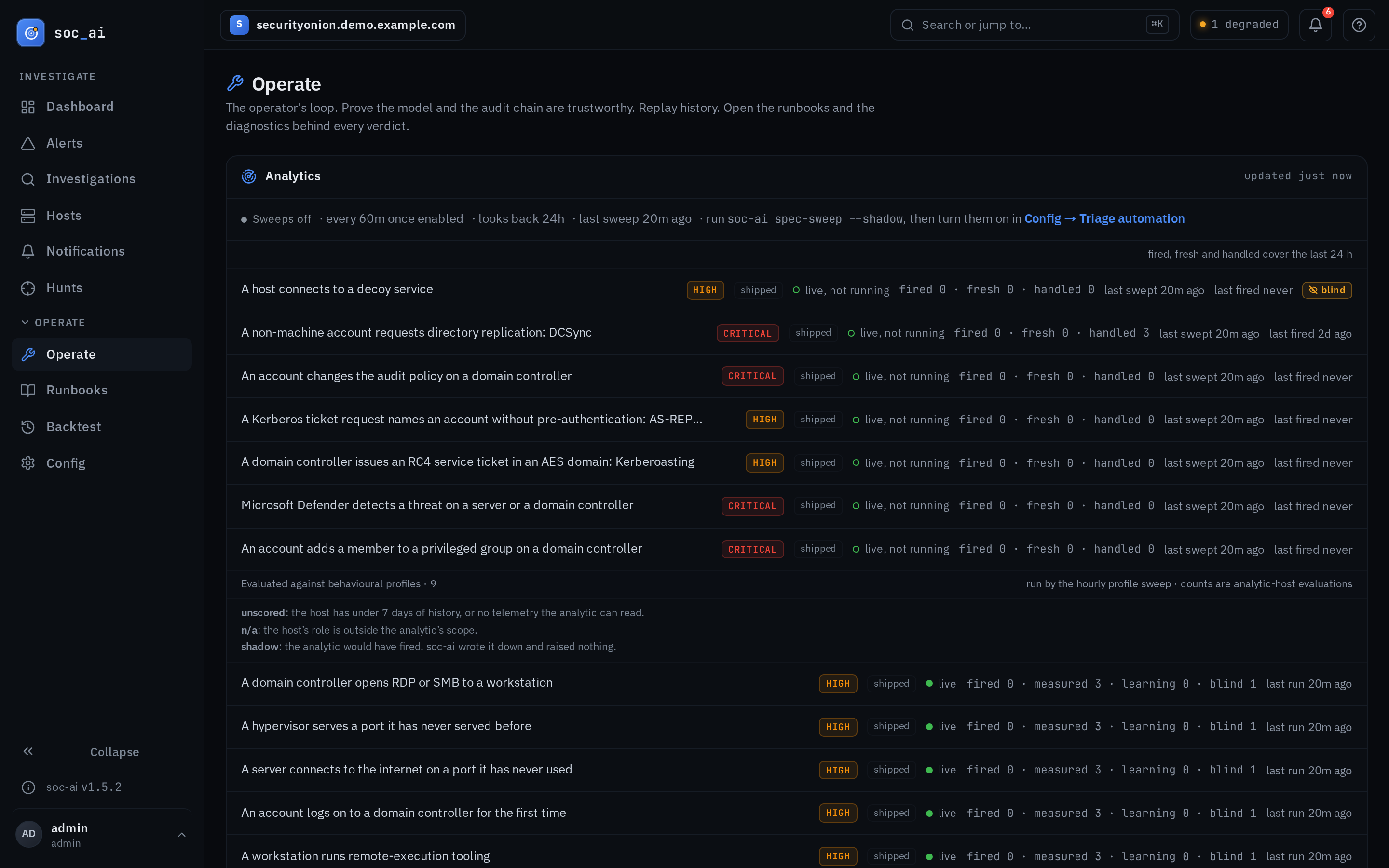
The Status page is at /app/operate. The sidebar names it Status. It shows the
state of the automatic work. Four live panels come first. Six cards follow. Each
card names one thing that soc-ai can prove, and links to the screen where you
prove it. The cards carry no live status of their own.
Dependencies shows Security Onion, Elasticsearch and the model gateway. Each row says up, slow, down or unknown, with the reason. It links to Settings > Connections. A row that soc-ai could not read says unknown. It never says up.
Scheduled jobs shows each job that runs with no operator. The jobs are continuous Auto-Investigate, the dossier sweep, the discovery scan, the audit chain check, the nightly quality eval and the backup. Each row shows the state, the last run, the last result and a link to its setting. The audit chain row tells a clean check from a check that could not read the audit index. soc-ai keeps some of these times in memory, so a restart clears them.
Escalations awaiting an answer lists each escalation claim that has no answer from Security Onion yet. Each row links to its alert.
Select Check Security Onion now on a row to compare that claim with Security Onion. soc-ai reads the case links and the alert, and writes nothing to Security Onion. When a case holds the alert, soc-ai settles the claim with that case. When Security Onion shows no case for the alert, soc-ai releases the claim. The alert can then be escalated again. The claim stays open in three cases:
- The claim is less than 15 minutes old. Its escalation can still be in flight.
- Security Onion marks the alert escalated and shows no case link.
- Security Onion does not answer, or answers in part.
The panel states the result in one sentence. One check runs at a time. The audit
trail records each settled claim as escalation_claim_settled.
The Analytics panel shows the analytic sweep. The scheduler runs the analytic catalog as a sweep with no model call. If no analytic fires, the sweep leaves no trace anywhere else in the console. Use this panel to confirm that the sweep runs.
The status line says whether the sweeps are on, how often they run, how far back
they look, and when the last one ran. With the sweeps off, the line still shows
the other three. A soc-ai spec-sweep run by hand leaves the same record with the
same look-back. The interval then reads "once enabled", because that is the
schedule the flag would start. The line also says how to turn the sweeps on.
A legend above the rows says that the counts cover the last 24 hours. Each analytic then gets a row. The row holds the level of the analytic and the number of times it fired in that window. It also holds how many of those hits were fresh or already handled. It also holds the last sweep time, the last firing time, and 3 markers.
shadow is amber and carries a count. It means some sweeps in the window were
spec-sweep --shadow runs. A shadow sweep counts what it would have reported as
fresh. It never counts it as fired. On a marked row, "fired 0, fresh 2" comes from the
shadow sweeps. The analytic holds back no hit. A condition that a shadow sweep saw
is fresh again to the live sweep that follows. The fresh count is therefore per
sweep.
blind is amber. It means that the precondition of the analytic matched nothing on the last sweep. The telemetry that the analytic reads is absent. An absent telemetry plane does not mean a clean grid.
error is red. It means that the sweep itself failed on that analytic. Hover over the marker for the reason.
The row of a profile analytic also carries a coverage cell. The cell gives how many entities the last sweep measured against a learned baseline and how many it read blind. It also gives the age of the baseline, as in "baseline 3 h old". The cell adds "stale" if a rebuild was due and did not happen. It reads "baseline unmeasurable:" and the reason the grid gave when the grid refused the query that builds a dimension.
An analytic that no sweep has reached yet reads "not yet swept". A row of zeros means "swept, saw nothing". The panel refreshes itself every 5 minutes.
- Model fitness proves that the model is fit before triage depends on it. It links to Settings → Agent.
- Verdict quality proves that the verdicts held up. It carries the nightly micro-eval trend and links to Settings → Quality.
- Audit chain proves the tamper-evident record is intact. It links to Settings → Diagnostics, and that screen carries a Verify audit chain button. Press it. It reports one of 5 outcomes:
- intact. A green check. soc-ai verified the records.
- partial verification. Amber. The scan stopped at the start of the chain and did not cover the whole chain.
- intact within N epochs. Amber. Every restart has its own verified trail, but soc-ai cannot link one restart boundary to another. This outcome does not claim one unbroken chain. Read the paragraph below.
- tampered. Red. The message names the sequence number and the restart it broke in.
- couldn't verify. Amber. The console could not read the chain at all.
Only a full, single-epoch, uncapped scan gets the green check.
A chain that spans more than one epoch is not proof of a problem. A process restart cannot link back to the records before it. This is expected behaviour. A bug that is now fixed once turned restarts into 134 epochs. The Diagnostics panel holds the details. The console names that state. It reports no tamper at a boundary. - Backtest replays history against the current pipeline. It links to Backtest. - Diagnostics is the doctor's view from inside the app. It links to Settings → Diagnostics. - Runbooks holds the procedures that ground every verdict. It links to Runbooks.
Backtest
The Backtest screen is at /app/backtest. It replays the agent over alerts that
your analysts already closed in Security Onion. Then it compares each verdict of
soc-ai with the decision of the analyst. An escalated alert counts as a true
positive. An acknowledged alert that nobody escalated counts as a false positive.
Select Run backtest to start a run. soc-ai first states the cost: the number of investigations by the model and the time. The time is the median time of the recent replays. soc-ai does not start a run while the grid or the model gateway is down.
To stop a running backtest, select Cancel backtest and confirm. The current
alert finishes, and no new alert starts. The run then has the status
cancelled. soc-ai keeps the results of the alerts that finished. The page
states "Cancelled after N of M alerts." Only an admin can cancel a backtest. The
audit trail records each cancel as backtest_cancelled.
The report shows three figures:
- Agreement with analysts: the share of the decided replays where the verdict of soc-ai matches the decision of the analyst.
- False-positive agreement: the share of the acknowledged alerts that soc-ai called a false positive. Auto-acknowledge acts on fewer alerts. It also applies the confidence threshold, the evidence test and the severity guard.
- Missed true positives: the escalated alerts that soc-ai called a false positive.
Each row of the per-alert table links to its replay investigation. Past runs lists the earlier runs. Select Open to read the report of an earlier run.
Each replay is a full investigation, and soc-ai keeps it. A replay is a measurement of the model. soc-ai applies these rules to every replay:
- The replay writes nothing to Security Onion. Auto-acknowledge is off for the replay.
- The page of a replay shows the recommended actions as not executable. The execute route refuses them.
- The verdict of a replay writes no observation. A replay therefore forms no lead.
- A replay sends no notification. The bell does not list it.
- The verdict of a replay is not the verdict of its alert. The Alerts screen, the Dashboard counts and auto-triage read the live runs only.
- No other alert inherits the verdict of a replay.
- Re-run and Request more info on a replay start a live run of the alert. The verdict of that run becomes the live verdict of the alert. The page asks first and names the live verdict.
- The Investigations list hides the replays by default. A grey Backtest replay chip marks each replay on the list and on its page.
Before this release, the verdict of a replay wrote an observation like a live
run. A replay could then form a lead. At startup, soc-ai marks each lead that
formed from replays only. The lead page lists the mark as the decision
formed_from_backtest. The mark changes no status. Dismiss the lead when no
other evidence supports it.
Runbooks
The agent grounds each verdict in the runbooks of your own team. A runbook
records what is normal on your network, which hosts are known-benign, and how
you triage each class of alert. During an investigation the agent searches the
runbooks with its lookup_runbook tool and cites the best match. The search
ranks a rule link first, then a tag, then a keyword. An optional embeddings tier
adds semantic search. Everything stays on your host.
The Runbooks screen at /app/runbooks is the authoring space. An analyst can
read a runbook. Only an admin can create, edit or delete one.
- Editor: the title, the markdown content, the tags, and the linked rules. A write and preview toggle is on the content field. A linked rule is a detection rule name or UUID that this runbook applies to. A rule link is the strongest retrieval signal. When that rule fires, the search ranks this runbook first. After Create runbook, the editor stays open on the new runbook.
- Linked rule chip: each linked rule on a row opens the Alerts screen. The screen shows the alerts of that rule in the last 30 days. An empty list means that the rule matched no alert in that window.
- Delete: select Delete, then Confirm delete. The model then stops citing the runbook. You cannot undo a delete. Press Escape to cancel.
- Import files: import your existing
.mdprocedures from your wiki or repo in bulk. The optional YAML front-matter fields aretitle:,tags:andrules:. The parser is lenient. It ignores malformed metadata and still imports the body. When the title is missing, the parser uses the first#heading, then the filename. - Load starter pack: seed 10 generic, vendor-neutral SOC runbooks from
runbooks/starter-pack/in the repo. The pack covers beaconing and command-and-control, scanner false positives, brute force, DNS tunneling, phishing, lateral movement, exfiltration, cryptomining, TLS anomalies, and a rule-tuning method. The action is idempotent by title, so it never duplicates or overwrites a runbook that you already have. Run it again after an upgrade. You can edit the seeded copies. A later load keeps your edits. - If you configure the optional Retrieval embeddings tier, each row shows its
embed status:
embedded,not embeddedorstale embedding. To embed the runbooks again, use Settings → Retrieval → "Re-embed runbooks".
The Settings page keeps a compact summary next to the Retrieval settings. The summary holds a count and a manage link.
Settings
The Settings page is at /app/config. The sidebar names it Settings. Only an admin can use it. It configures
soc-ai from the console. A non-admin who opens it gets a 403 page. The console does
not send that user into a login loop.
The day-1 view
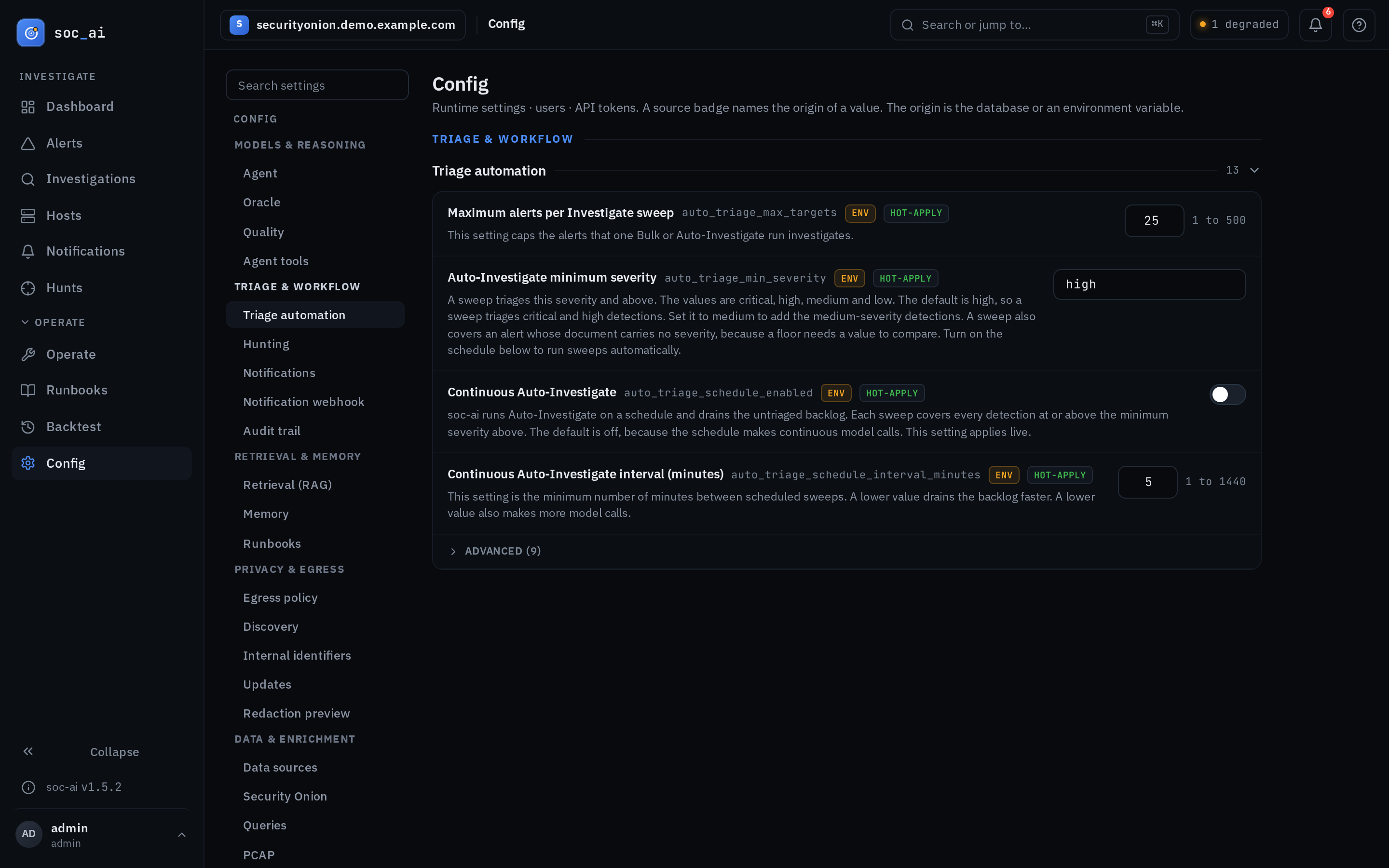
Settings opens on 8 decisions. The decisions are the investigation model, the events index pattern, the alerts query, the 4 auto-triage settings, and the notifications master toggle. The 4 auto-triage settings are the schedule switch, the interval, the per-run target cap and the minimum severity. setup.sh already asks about most of them at install time. The others decide whether the console shows anything at all. The notifications toggle is the only opt-in decision about outbound egress. It needs a check on day 1.
The other settings of a section are behind an Advanced (N) fold, collapsed by default. A section with no day-1 setting in it starts with its Advanced fold open, so it does not read as empty.
Settings search still finds every setting, day-1 or behind Advanced. A click on a result opens the section of the setting. It also opens the Advanced fold if the setting is there.
Settings sections: Oracle, Agent and PCAP
These sections hold editable, non-secret runtime settings. Each row shows an origin badge:
defaultmeans soc-ai uses its code default.envmeans the value comes from the environment or.env. The row also names the default.dbmeans an admin saved the value in the console. soc-ai stores it in theconfig_overridestable. Adbvalue wins over.envand the default.
A db row names the value under the override. Select Use the .env value or
Use the default to remove the override. soc-ai then returns to that value.
A hot-apply setting applies at once. A save writes the override and changes the
live settings. A restart setting applies at the next start. Until then its row
shows "waits for restart". soc-ai applies the overrides again at startup, so they
stay after a restart.
A number field shows its range. A value outside the range gets an error under the field before Apply. The error names the setting by its label. These keys are editable:
- Oracle:
oracle_enabled,oracle_model, and the escalation thresholdsoracle_escalate_*.oracle_enabledturns on the Oracle, the cloud second opinion. soc-ai sanitizes everything that it sends there. The Oracle toggle is in this section. - Agent:
investigate_when_unsureandgeneral_chat_enabled.investigate_when_unsureruns the bounded investigation loop if evidence does not back the fast round-1 verdict.general_chat_enabledcontrols the general scope of Ask soc-ai and the Dashboard card. It is on by default. - PCAP:
pcap_enabledfetches and decodes raw packets on demand from the Suricata pcap ring on the Security Onion sensor.
Connection settings
The connection details for the model gateway, Security Onion and Elasticsearch
default to the values in .env on the host. The Settings > Connections section
lets an admin override the connection identity and the credentials. A row shows
the current value of a non-secret setting. Edit starts from that value. A
secret shows Set or Not set. soc-ai never returns the value of a secret.
An optional secret that is not set shows in a neutral tone. The fields
are so_host,
so_username, so_password, so_verify_ssl, the SSH-pivot fields
so_ssh_host, so_ssh_user and so_ssh_key, es_hosts, es_username,
es_password, es_verify_ssl, litellm_base_url, litellm_api_key, and
internal_cidrs.
Each write needs a typed confirmation. Retype the key name to confirm it. soc-ai
encrypts the value at rest with Fernet, so this panel needs CONFIG_SECRET_KEY.
soc-ai builds the clients for these settings at startup. Thus an override takes
effect at the next restart.
An admin session can repoint the gateway or the grid from here. That sends the
enriched context of every alert to a different endpoint. Treat the admin role and
/app/config as trust-sensitive.
- Test in an edit of a gateway or Elasticsearch setting probes the edited value before you save it. The test saves nothing and changes nothing.
- Test connection buttons in Settings > Diagnostics probe the model gateway
with
GET /v1/modelsand report the model count. A second button probes Elasticsearch withpingand reports the cluster and the version. Each result is an inline ✓ or ✗ and holds no secret.
API keys
A separate API keys panel holds the enrichment-provider secrets:
shodan_api_key, greynoise_api_key, misp_api_key, maxmind_license_key,
abuse_ch_auth_key, and crawl4ai_token. The panel is next to Data sources,
outside the normal settings groups. These keys are write-only. soc-ai
encrypts each one at rest with Fernet and never shows it again. soc-ai
reads each key again on every enrichment call. Thus a key needs
no restart and no typed confirmation. soc-ai can store the keys only when
CONFIG_SECRET_KEY is set.
Users
Add a user with a username, a password of 8 characters or more, and a role. You can enable a user, disable one, reset a password, and change a role.
Reset password asks first. A reset ends every session of the user and revokes the API tokens that the user created. soc-ai shows the new password once with a Copy button. The banner closes after 30 seconds.
Three guards apply. You cannot reset your own password here. Your own row has Change password, because a reset would end your own session. You cannot disable your own account. You cannot disable or demote the last enabled admin.
API tokens
Create and revoke API tokens here. Give each token a name, for example the name
of the integration. soc-ai shows the scai_ token one time, at creation, with a
Copy button. Copy it then. soc-ai stores only the hash of the token.
Revoke asks first and names the token. A token gives programmatic API access
for automation and integrations after you enable API_AUTH_REQUIRED.
A token needs a signed-in user to own it. With authentication off and no signed-in user, the section has no Create token. Sign in as an admin first.
Diagnostics
Diagnostics lists every doctor row. The header has one chip per grade with rows: FAIL, WARN and INFO, in that order. A chip shows the rows of its grade only. Press it again to show every row. Verify audit chain reads the audit records of the last 7 days, and the result line names that window.
Settings search
The search finds a setting by its label, its key or its help text. It also finds
a section by its name, and words of a panel such as maxmind or battery. It
finds the rows of Agent tools, Data sources and API keys by name. A click opens
the section and marks the row. Press Escape to clear the search.
Safety model summary
Every read tool that the agent uses is read-only. A write tool changes Security Onion state. The write tools acknowledge an alert, escalate it to a case, and add a comment. The agent can only recommend a write tool. You execute it with a click from the report, and soc-ai audits every execution.
The only bounded exception is the confidence-gated auto-acknowledge for a
low-stakes false positive. auto_ack_fp_enabled controls it. It never touches a
critical alert or a malware-class alert. It never acts on a verdict for which the run
retrieved nothing. See SAFETY_MODEL.md and the agent
capability surface in AGENT_TOOLS.md.